
What changes and when
Since 1 November 2026, businesses can register for the new sales registration (EET 2.0). According to the official timeline, that is the day certificates and sales units became available in DIS+ inside MOJE daně, the Czech tax portal. The state plans a free web app called MOJE eet for small businesses on 1 December. Actual recording starts on 1 January 2027, when Act No. 180/2026 Sb. takes effect.
The EET website calls January a pilot, but the same page says it is already standard recording. So it is safer to assume you have to record properly from day one.
Who has to record, and who does not
According to the page on who must record, three things must be true at the same time. The customer pays in person (at your premises or in a vehicle) or in cash. The money is income from your business. And no exemption applies to you.
Cash is always recorded, even if the customer is not standing in front of you. Cards, QR codes, meal vouchers and crypto are recorded when the payment is made in person. Payments made remotely, such as through an e-shop payment gateway, are not.
The exemptions include public bodies, financial institutions, vending machines and blind persons who meet the conditions.
For small sole traders there is also EET OFF. It is for individuals in the flat-rate tax regime (paušální režim), first band, whose self-employment income in the previous period was up to 1 million Kč. Instead of recording, you pay a surcharge of 1 400 Kč a month. You have to notify the tax office by the 10th day of the period it should apply from.
Before you start: three ways to log in
Everything happens on the MOJE daně portal, in the section called Online finanční úřad (the online tax office). When you log in, the portal offers three options. You only need one of them.
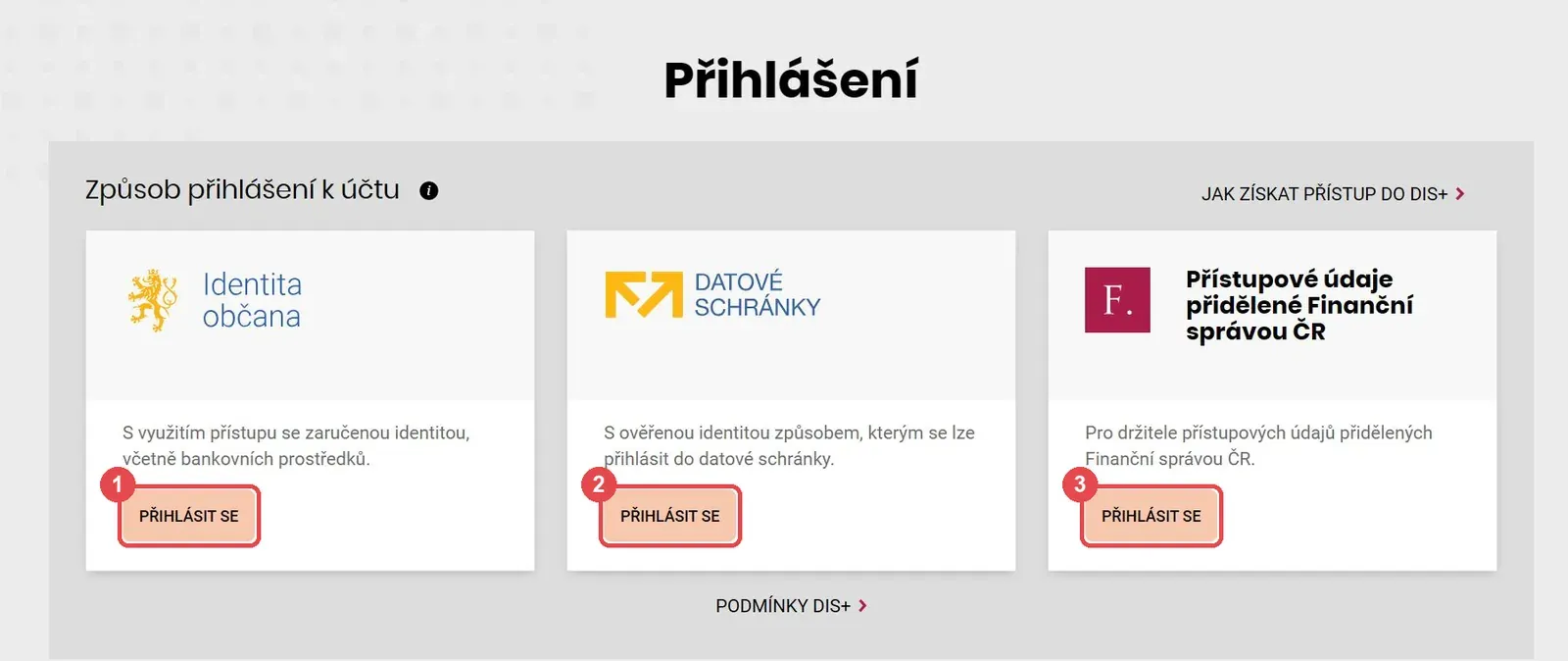
1. Identita občana (Citizen Identity)
The most common way. After you click Přihlásit se (Log in), you choose what you log in with:
- Bank identity. You pick your bank and log in the same way as to internet banking, usually with a confirmation in your bank’s mobile app. Most large Czech banks support it.
- eObčanka. The Czech ID card with a chip. You need a card reader and an app, or a phone with NFC.
- eGovernment mobile key and other means you have linked to Identita občana.
The first time, the portal asks for your consent to pass on your data. Confirm it, otherwise MOJE daně will not recognise you.
2. Datová schránka (data box)
You log in with the name and password of your data box, plus the second verification step if you have it switched on. Sole traders who are individuals have had a data box set up automatically since 2023, and the login details came by post. If you lost them, Czech POINT can issue new ones.
3. Access credentials from the tax office
A name and password issued directly by the tax office (finanční úřad). It is useful when you have no bank identity, no eObčanka and no data box, which is often the case for foreigners. First you apply for them online through the link Jak získat přístup do DIS+ (how to get access to DIS+), at the top right of the login page. Then you have 30 days to visit any tax office in person with an ID document. If a representative acts for you, they need a notarised power of attorney, except lawyers and tax advisers.
If your DIS+ is not active yet, the portal offers to activate it after you log in. You should have access within 48 hours. If the office has no data about you, it can take up to 5 working days.
Activation step by step
We went through the process on a real account, setting up a nail studio. Where a step depends on your line of work, we say what to choose for nails, beauty and hairdressing. The tax authority also describes the whole process on its page how to start recording. In the pictures, red marks show where to click and the numbers show the order.
The buttons and menus in the portal are in Czech, so we keep them in Czech and add a short translation the first time.
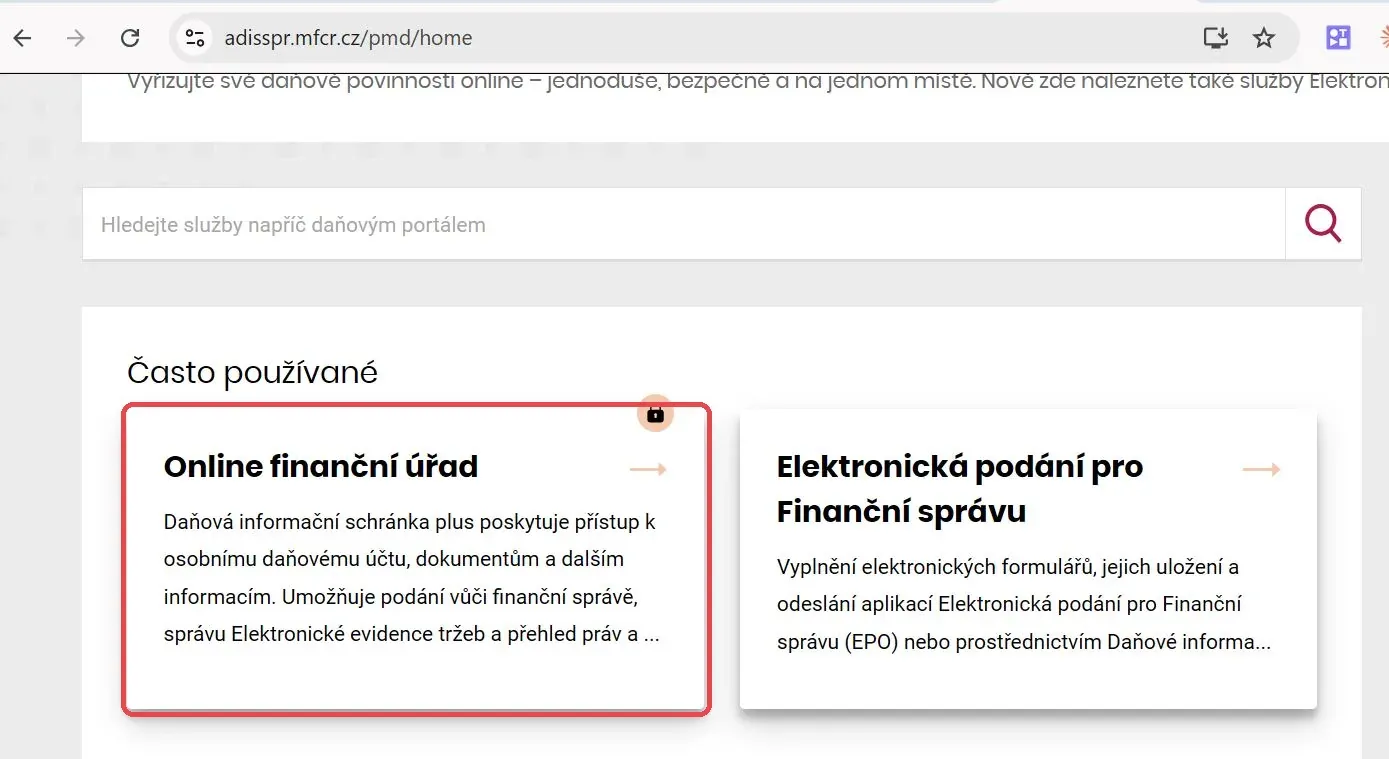
1. Open Online finanční úřad
On the start page of MOJE daně, click the tile Online finanční úřad (Online Tax Office) and log in with one of the three ways described above.
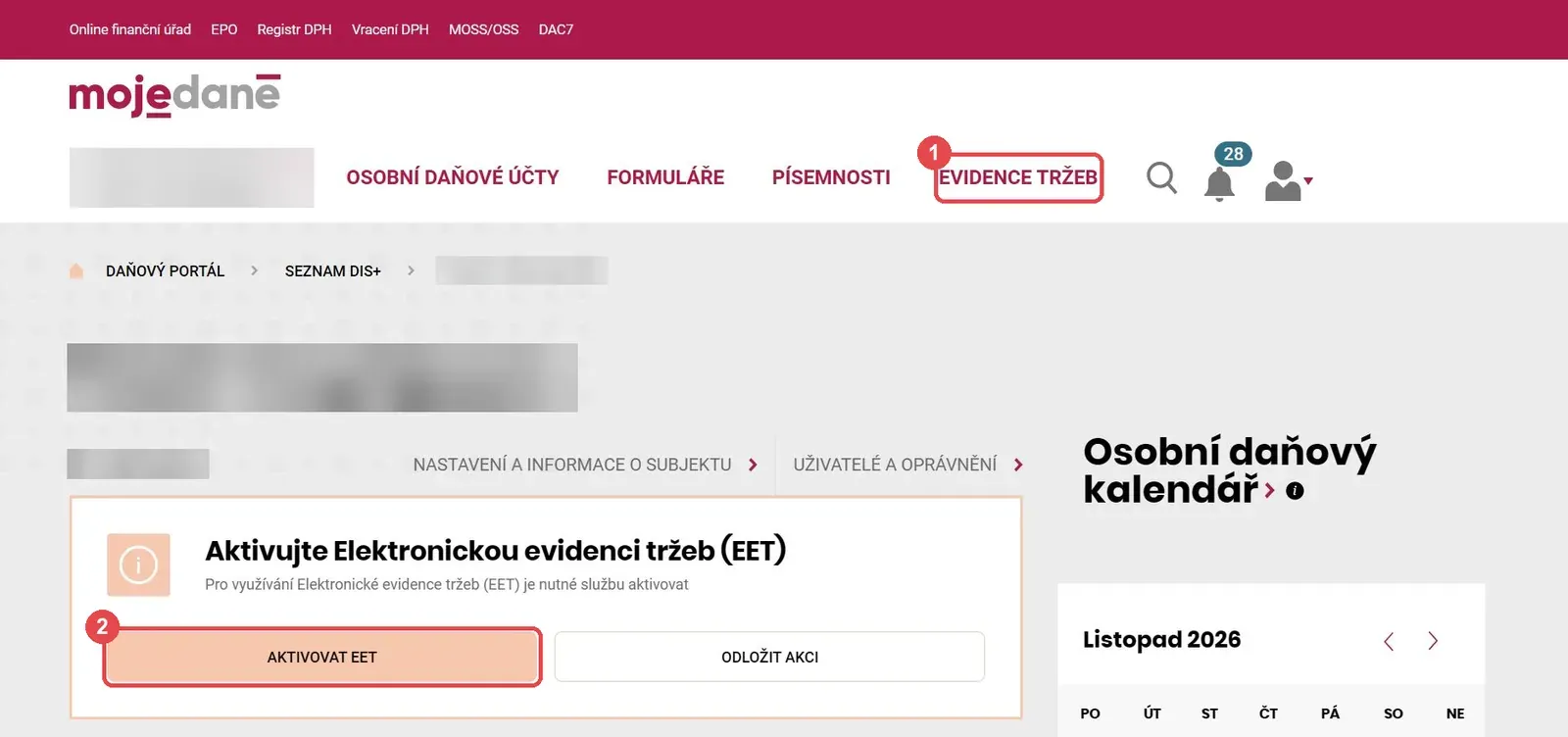
2. Activate EET
After logging in you will see a page with your name and a box titled Aktivujte Elektronickou evidenci tržeb (EET) (Activate Electronic Sales Registration). Click Aktivovat EET (Activate EET). If you do not see the box, open Evidence tržeb (Sales registration) in the top menu.
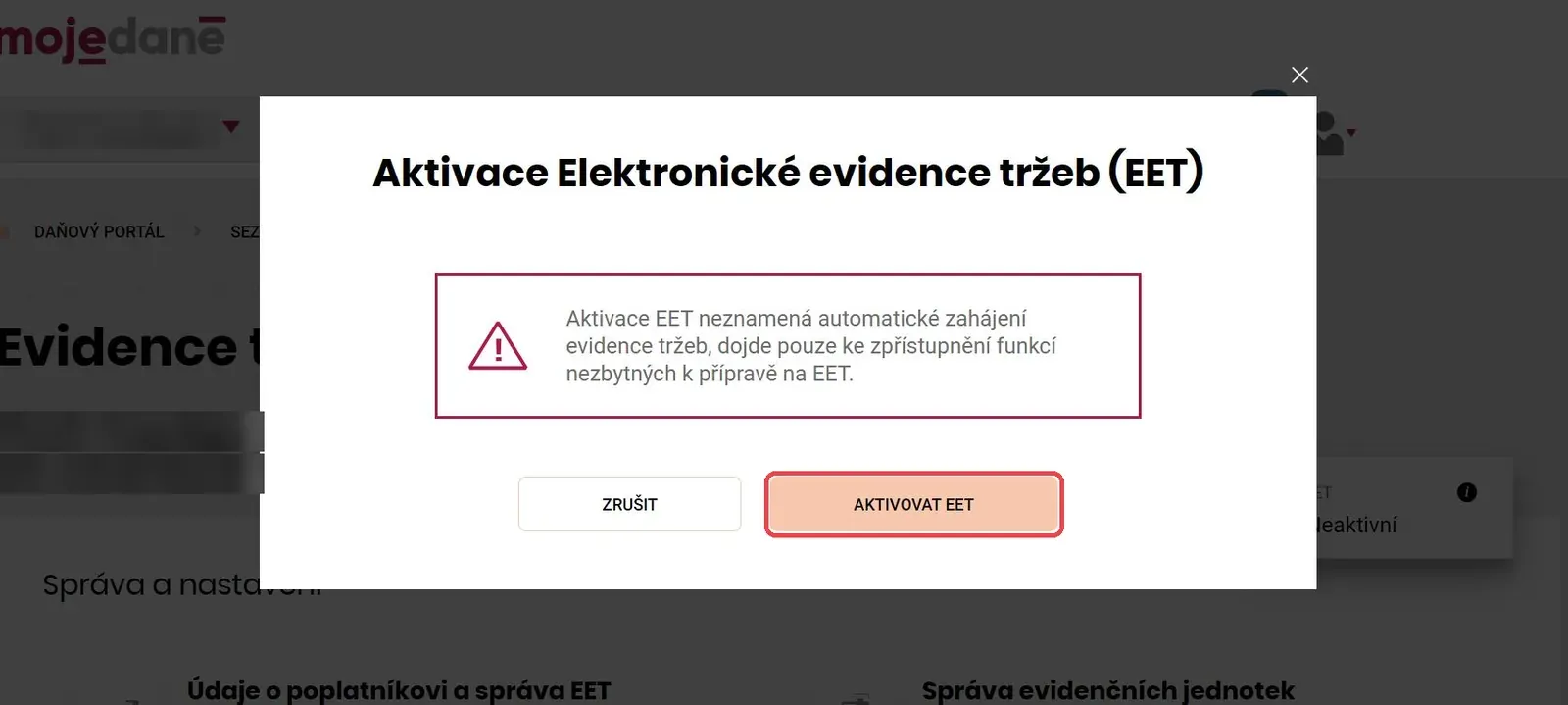
3. Confirm the activation
The portal reminds you that activating does not start recording yet. It only unlocks everything you need to prepare. Click Aktivovat EET again.
4. Read what comes next
A summary of the next steps appears. It also mentions the state app MOJE EET. It is supposed to be available from 1 December, and whoever uses it does not have to generate a certificate, because the app installs one by itself. If you have a till from us or from another vendor, you do need a certificate. Click Rozumím (I understand).
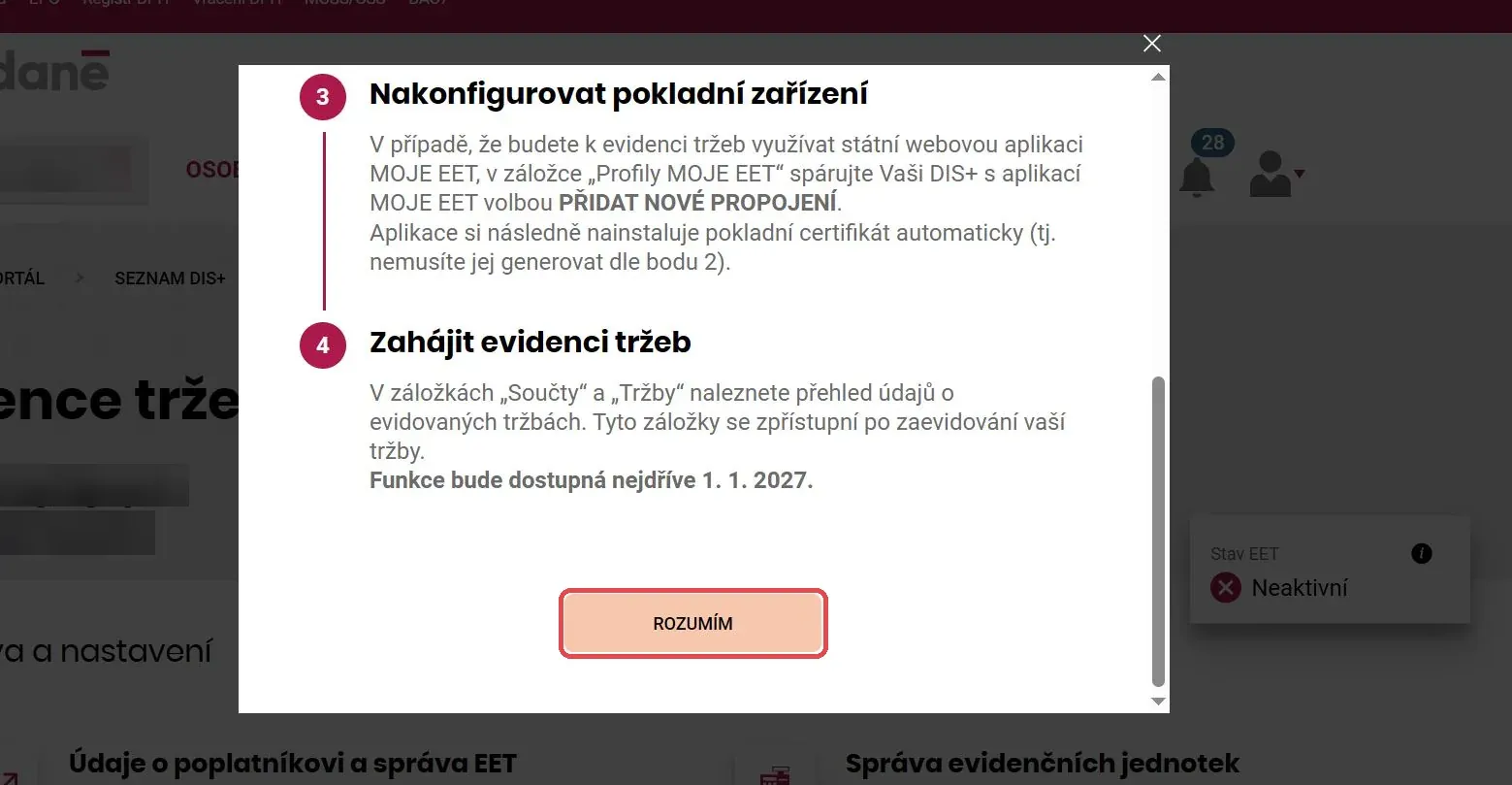
5. Open Správa evidenčních jednotek
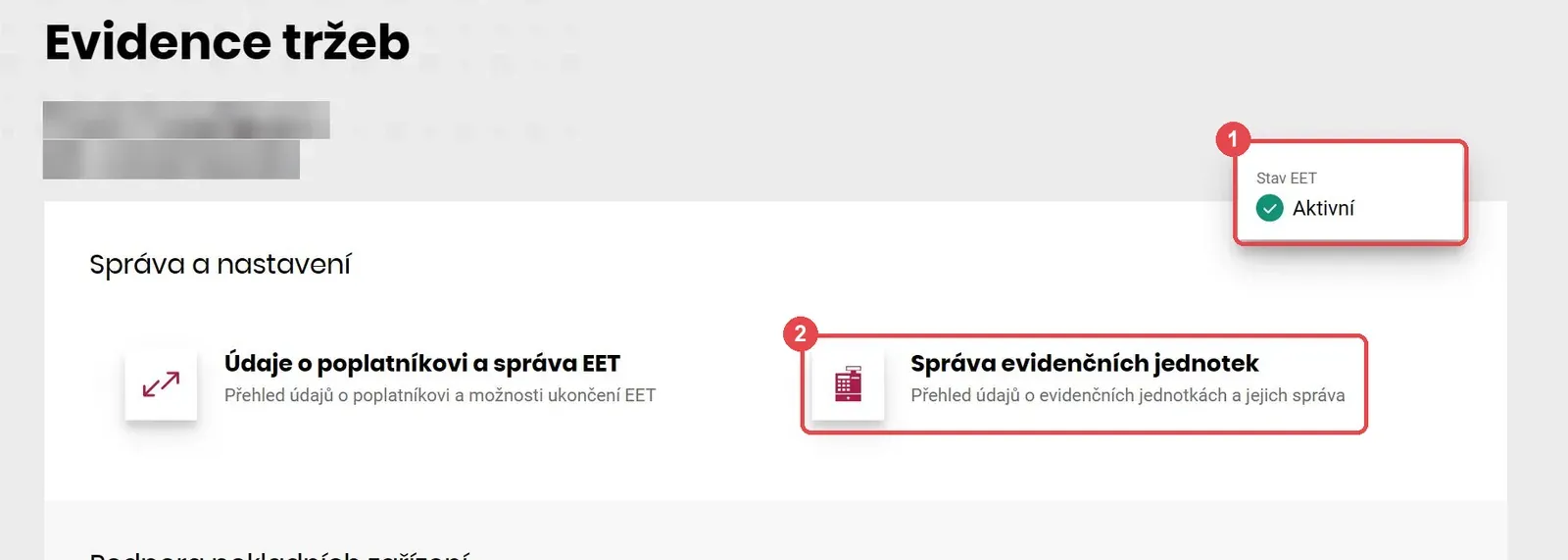
At the top right, Stav EET (EET status) should now be green and say Aktivní (Active). Under the heading Správa a nastavení (Management and settings), click Správa evidenčních jednotek (Management of sales units).
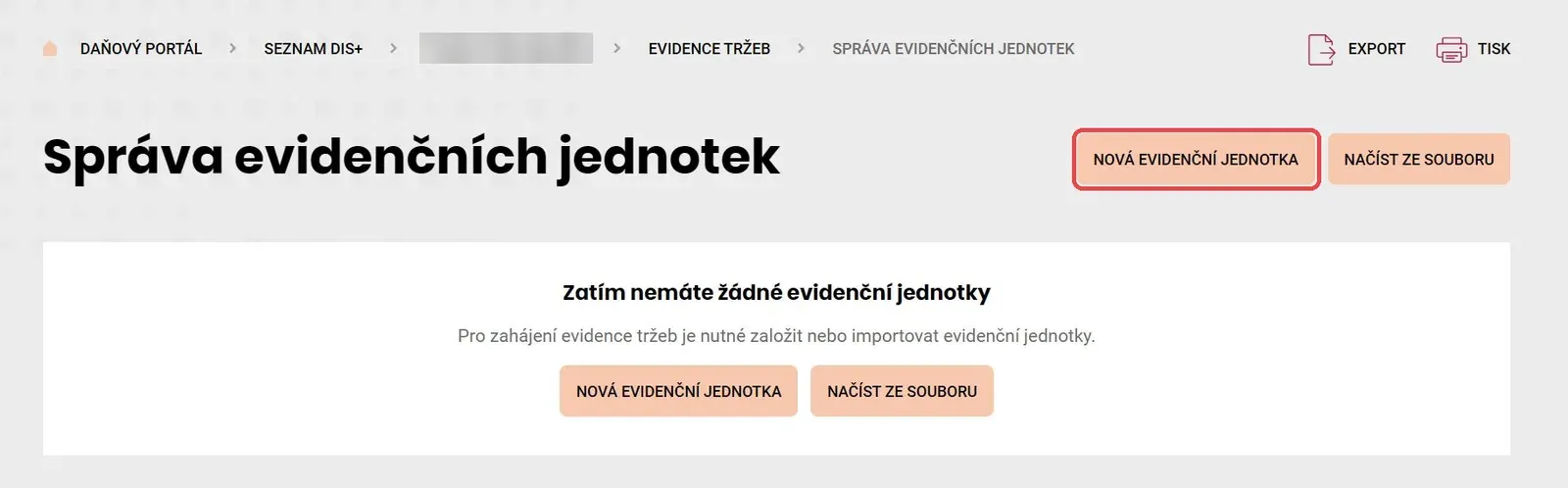
6. Create a new sales unit
A sales unit (evidenční jednotka) is a place where you take money from customers, typically your salon. Click Nová evidenční jednotka (New sales unit). If you have many units, you can upload them from a file, but for one salon you do not need that.
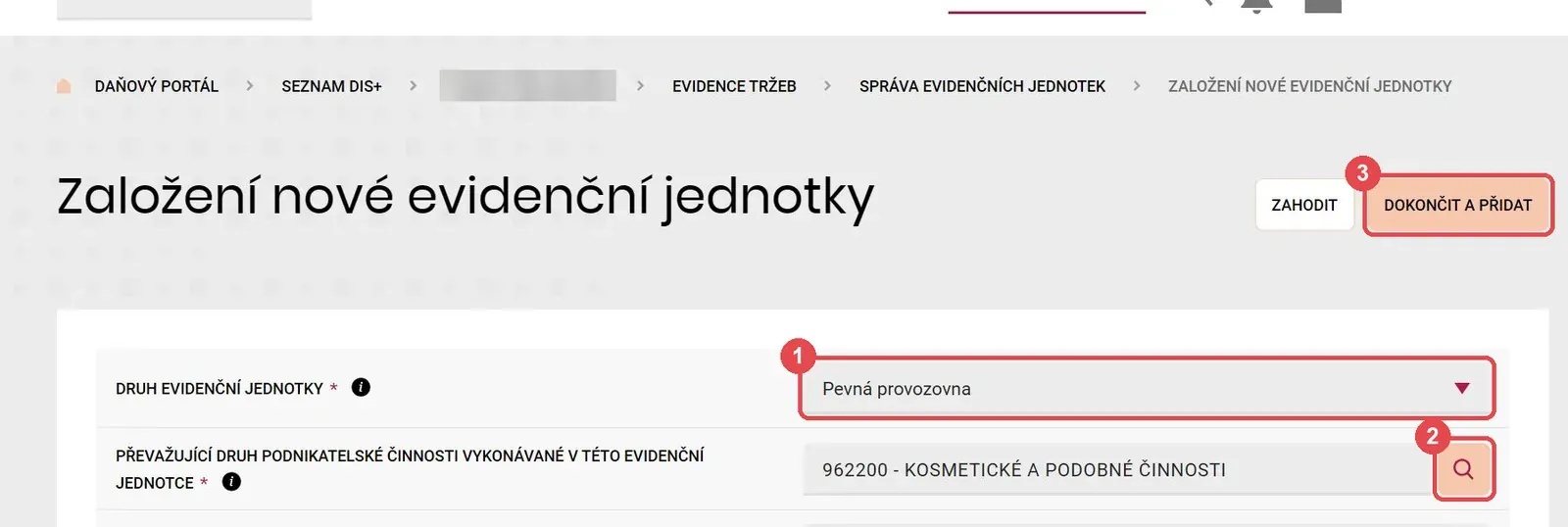
7. Choose the unit type and open the activity picker
For Druh evidenční jednotky (type of sales unit) choose Pevná provozovna (fixed premises) if your salon has a permanent address. For Převažující druh podnikatelské činnosti (main type of business activity), click the magnifying glass on the right. The button Dokončit a přidat (Finish and add) at the top (number 3 in the picture) is used only at the end, once everything else is filled in.
The fields Upřesnění druhu podnikatelské činnosti (activity details) and Název (name) are optional. A name is handy though, for example “Nail Studio Rakovník”, because it helps you recognise the unit in the list.
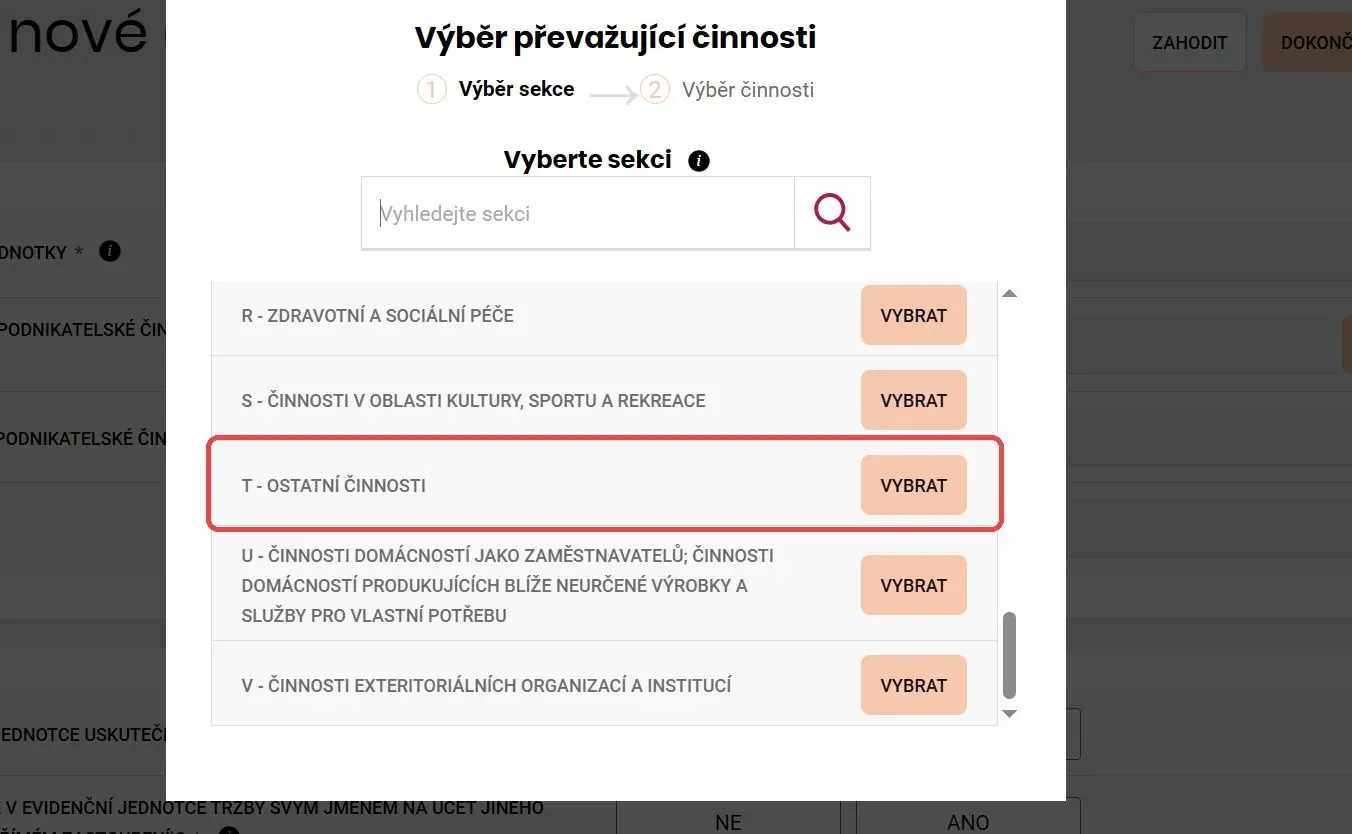
8. Choose section T – Ostatní činnosti
Activities are divided into sections according to the CZ-NACE classification. Beauty, nails and hairdressing all belong to section T – Ostatní činnosti (Other activities). Scroll down the list and click Vybrat (Select) next to it.
9. Choose the specific activity
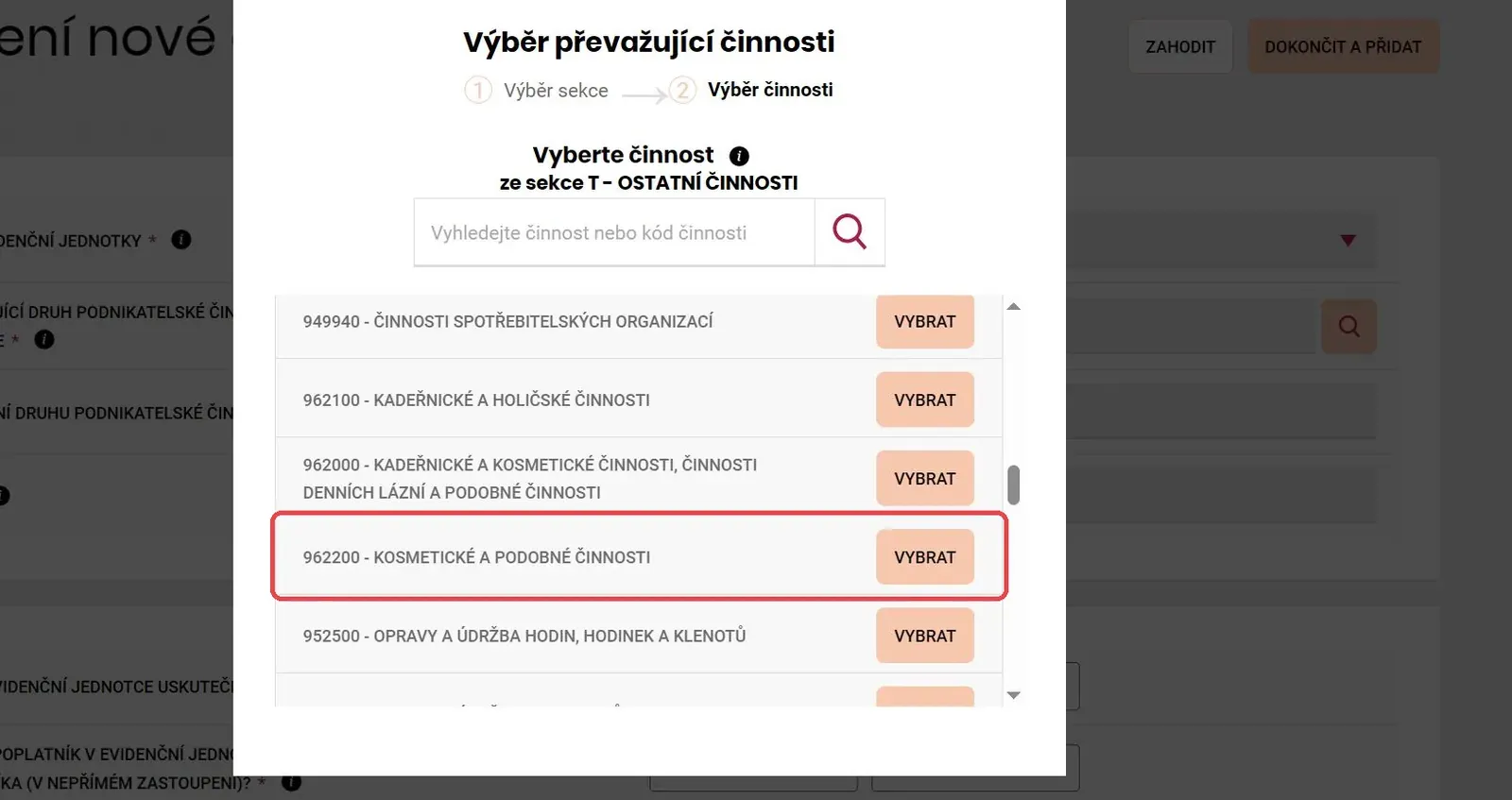
You can type the code straight into the search. Pick the one that matches what you do most:
- 962200 – Kosmetické a podobné činnosti (cosmetic and similar services) for nail studios, manicure, pedicure, beauty treatments and lashes. This is the code we chose for a nail salon.
- 962100 – Kadeřnické a holičské činnosti (hairdressing and barber services) for hair salons and barbers.
- 962000 is a summary group. If your activity fits one of the codes above, choose the more precise one.
10. Answer two questions
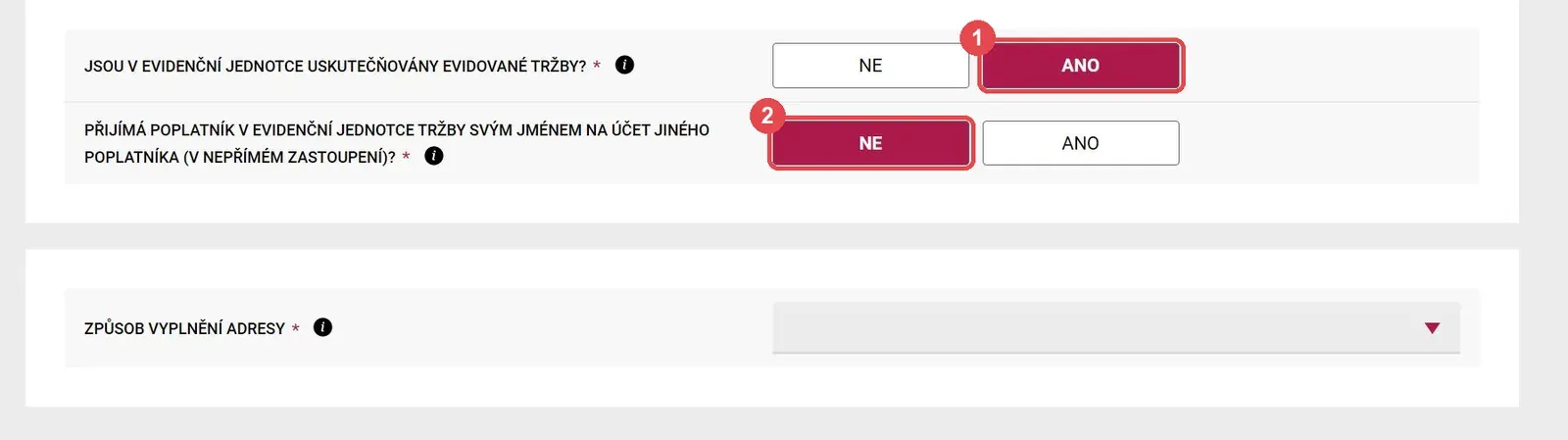
- Jsou v evidenční jednotce uskutečňovány evidované tržby? (Are recorded sales made in the unit?) Choose ANO (yes). In a salon you take cash or cards in person, so you record your sales. NE (no) is only for places that receive exclusively payments that are not recorded.
- Přijímá poplatník v evidenční jednotce tržby svým jménem na účet jiného poplatníka (v nepřímém zastoupení)? (Does the taxpayer receive sales in their own name on behalf of another taxpayer, in indirect representation?) Choose NE (no). ANO is mainly about commission sales, where you sell someone else’s goods in your own name. An ordinary salon does not do that.
11. Enter the salon’s address
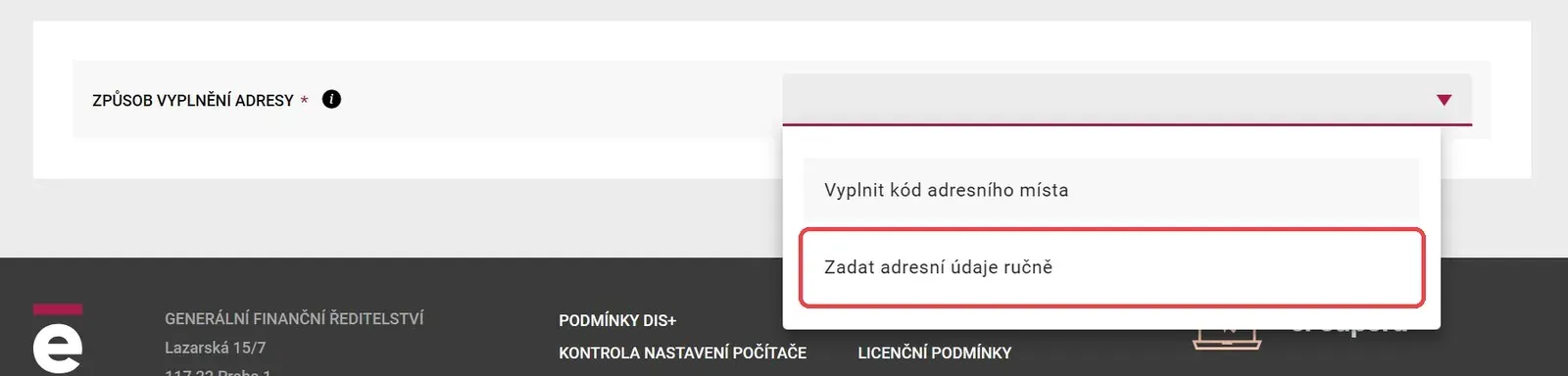
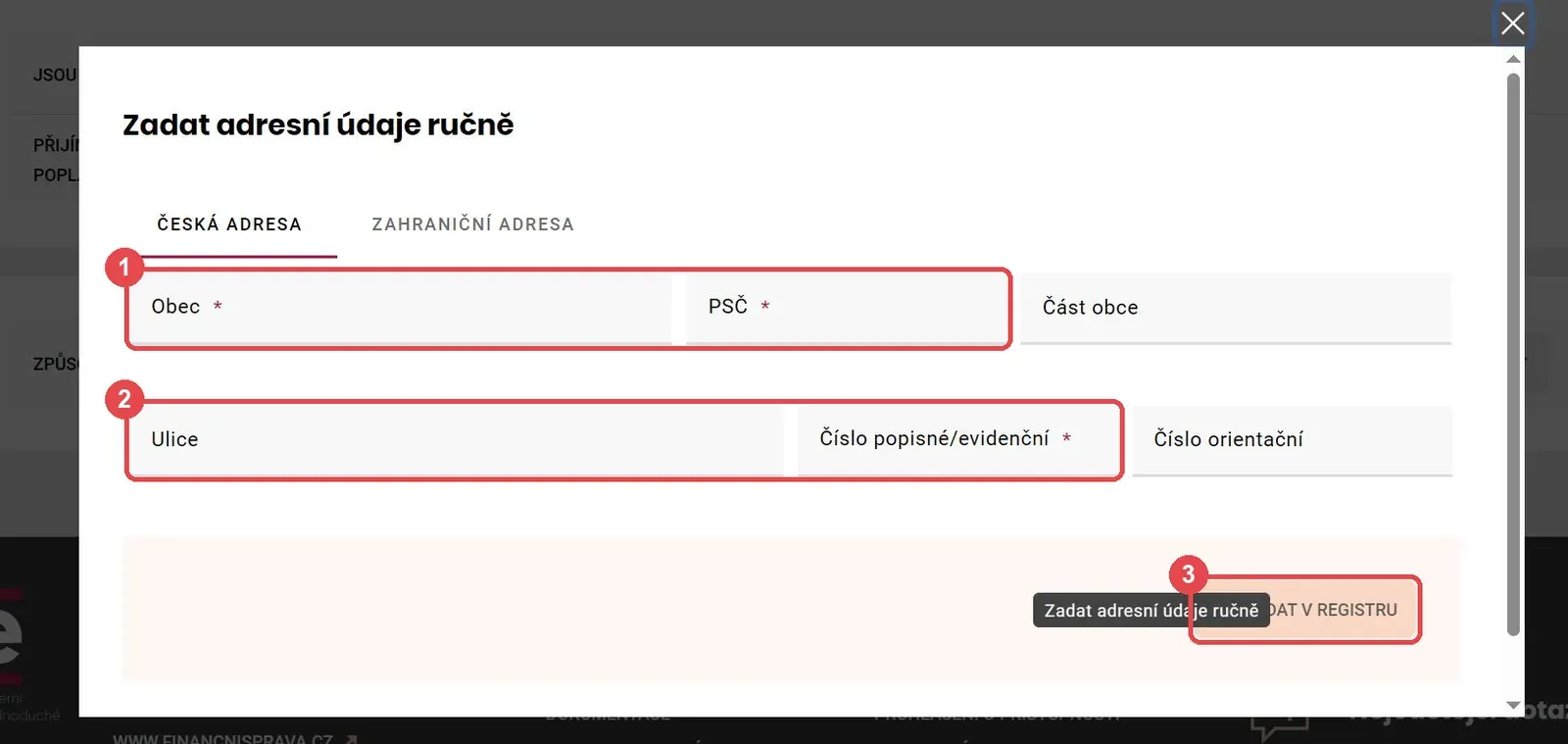
For Způsob vyplnění adresy (way of filling in the address) choose Zadat adresní údaje ručně (enter the address details manually). Most people do not know their address point code. If you do, you can use the first option.
Fill in the town, postcode, street and the house number (číslo popisné). Add the orientation number (číslo orientační) if your address has one. Then click Vyhledat v registru (Search in the register).
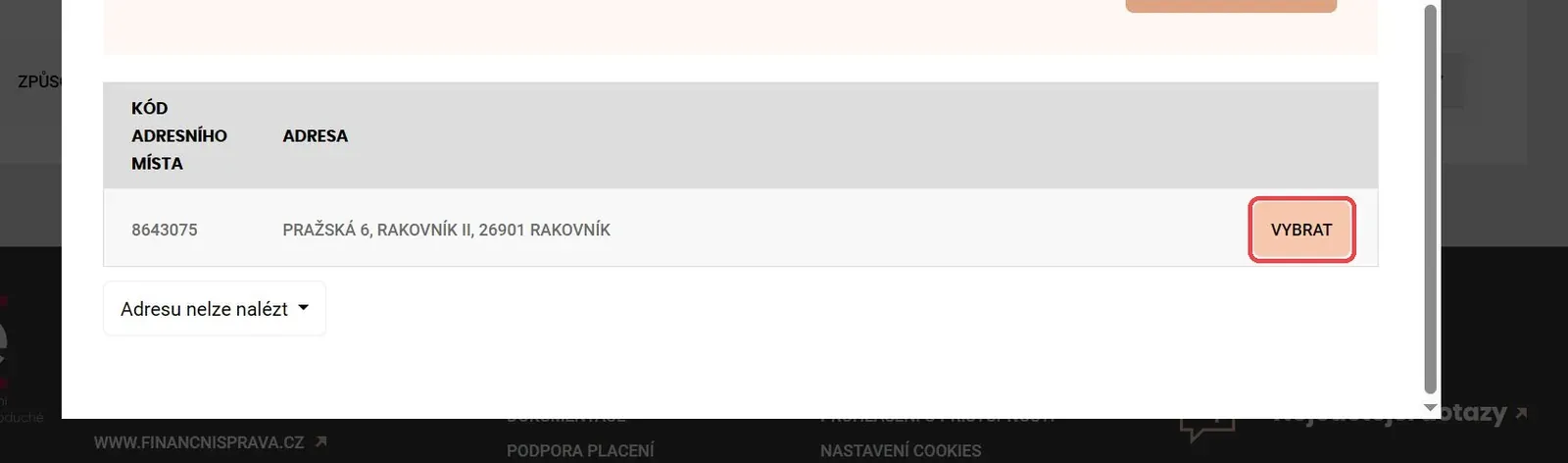
The portal finds the address in the address register. Click Vybrat (Select) next to the right one. If it finds nothing, check the house number, because it is often confused with the orientation number.
12. Save the unit
Go back to the top and click Dokončit a přidat (number 3 in the picture in step 7). The unit appears in the list and the system gives it an ID. You will need it when setting up the till.
13. Open Pokladní certifikáty
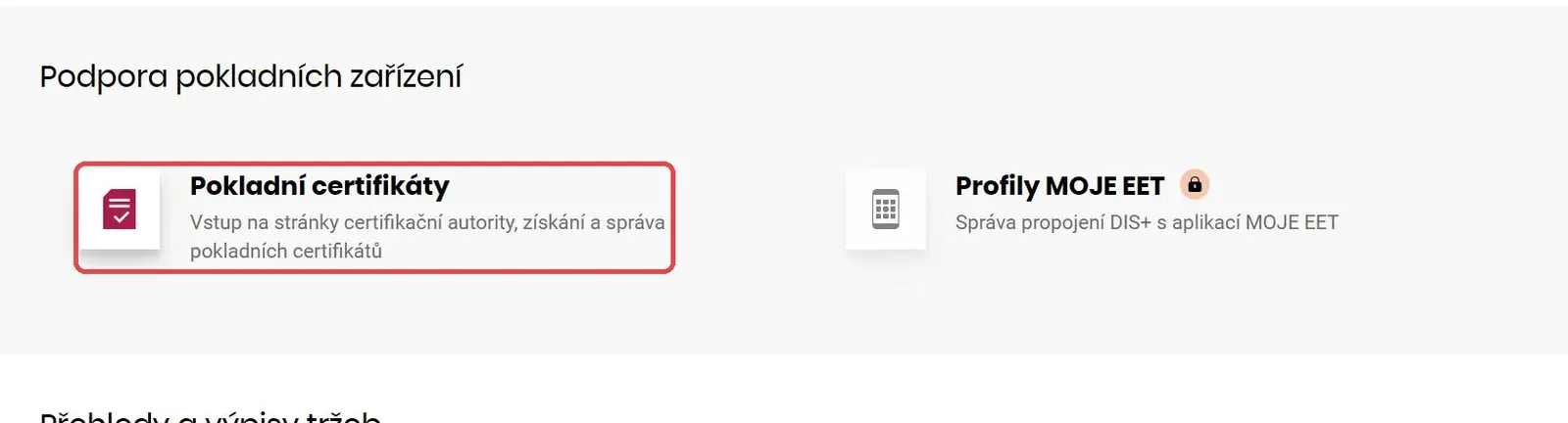
Go back to the Evidence tržeb page and scroll down to the section Podpora pokladních zařízení (support for cash register devices). Click Pokladní certifikáty (till certificates). The page of the certification authority opens, where certificates are created. The tile Profily MOJE EET (MOJE EET profiles) is still locked and will open together with the state app.
14. Create a new certificate
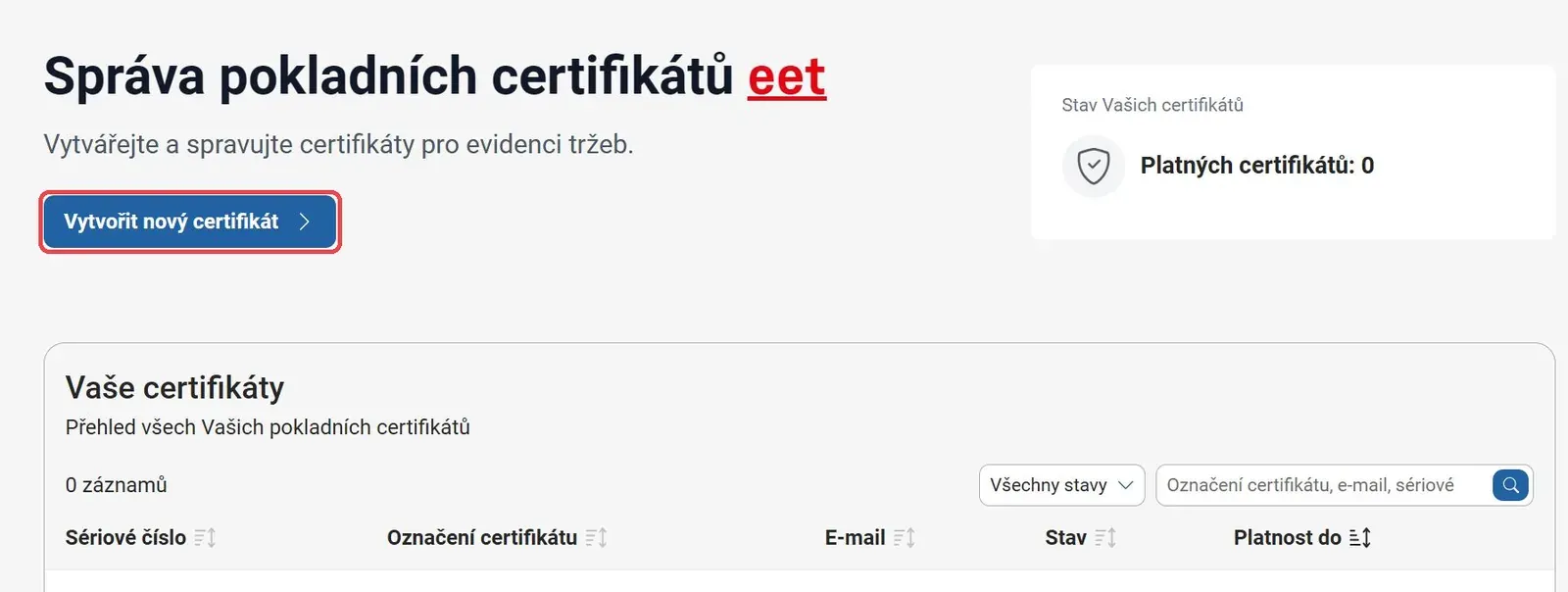
A certificate is a file your till uses to prove itself to the tax office. It is free and you can have several, for example one for each tablet or phone. Click Vytvořit nový certifikát (Create a new certificate).
15. Fill in the e-mail and the label
- E-mail pro upozornění (notification e-mail) is optional, but fill it in. The office will write to you when the certificate is ready and will warn you before it expires.
- Označení certifikátu (certificate label) is optional too. Write which device it belongs to, for example “Reception tablet”. Once you have more certificates, you will tell them apart by it.
Then click Vytvořit certifikát (Create certificate).
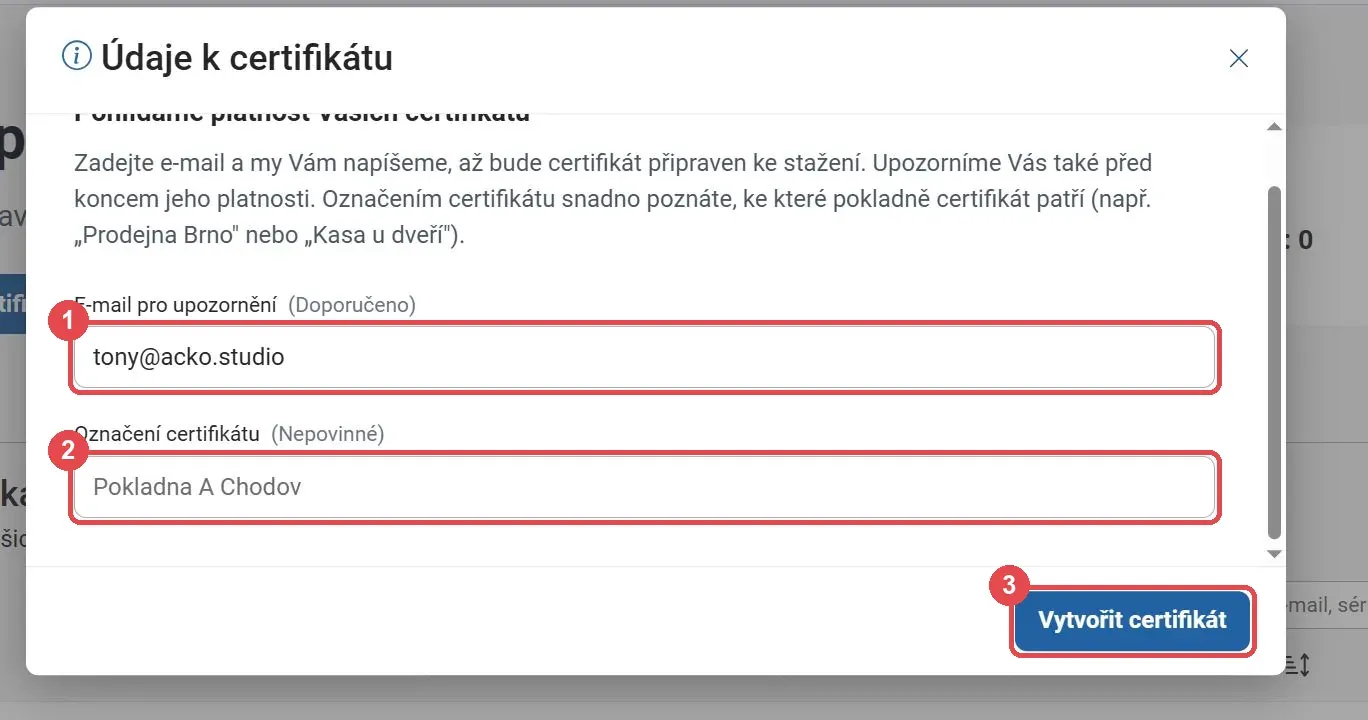
16. Show the password and download the certificate
When the certificate is ready, click Zobrazit heslo a stáhnout certifikát (Show password and download certificate). Before you do, decide where you will keep the password.
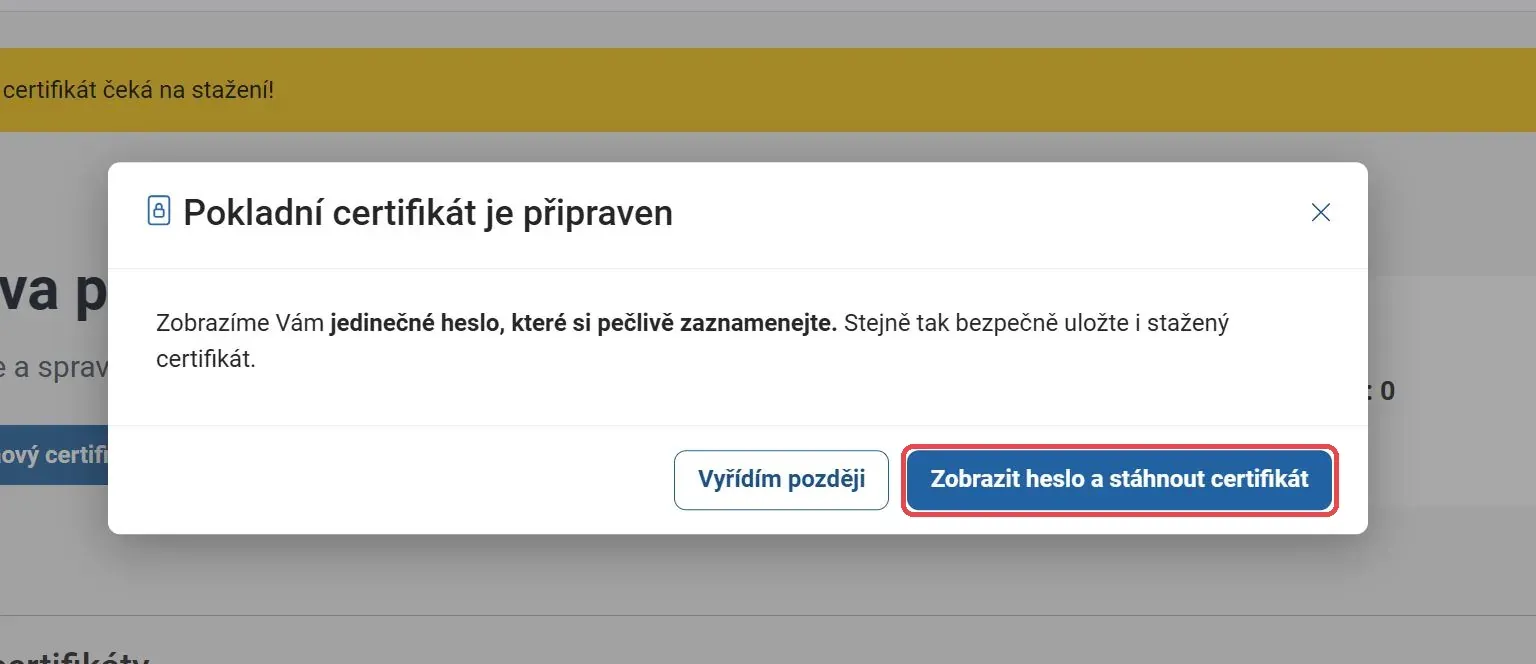
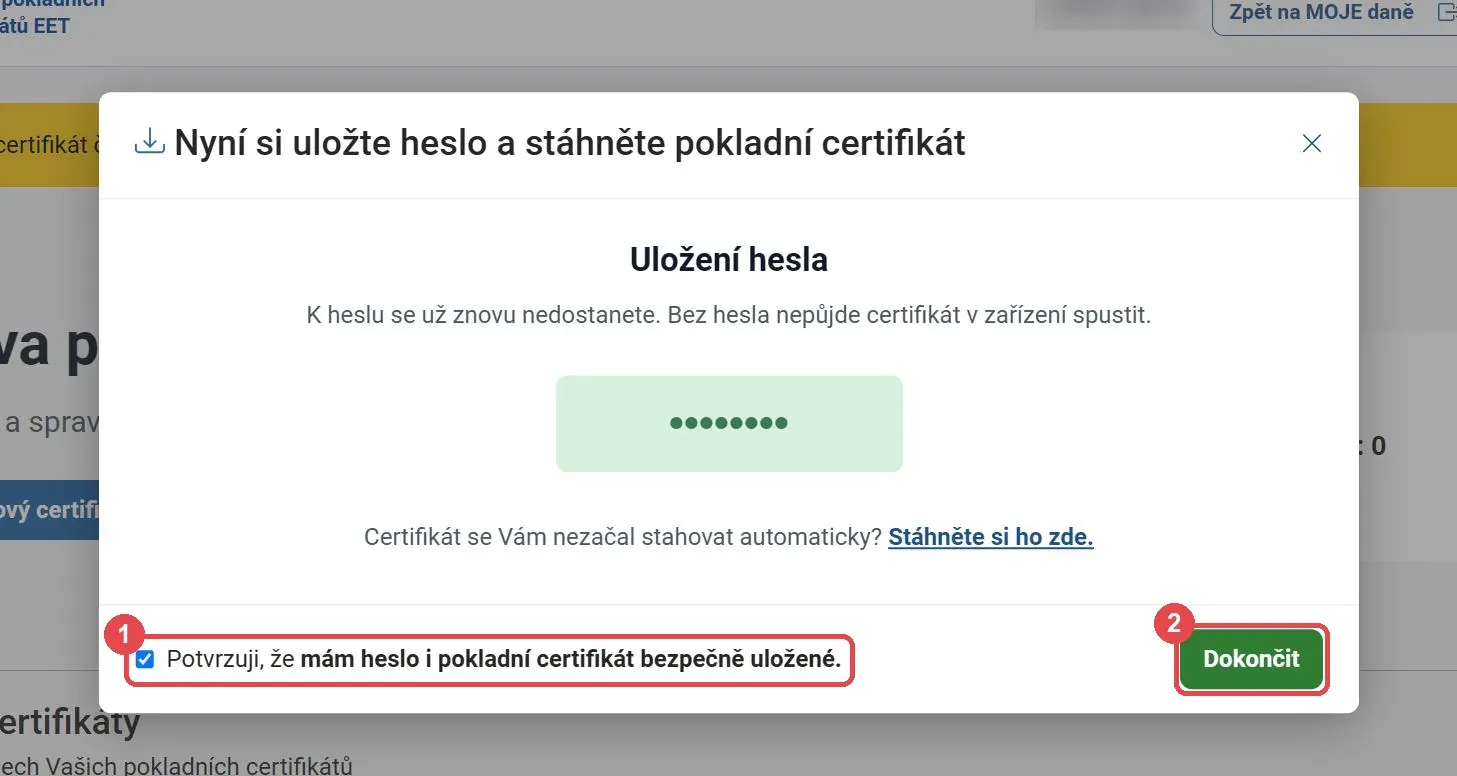
17. Save the password, it is shown only once
This is the most important step. The password appears only now and you cannot get back to it. Without it you cannot start the certificate in your till and you would have to create a new one. Copy it into a password manager or write it down. At the same time, a certificate file with the extension .p12 is downloaded to your computer. If the download does not start, click Stáhněte si ho zde (download it here).
The password and the file belong together, and whoever has both can send sales in your name. So do not send them together in one message, do not photograph the password and do not leave the file in your Downloads folder. Then tick the confirmation and click Dokončit (Finish).
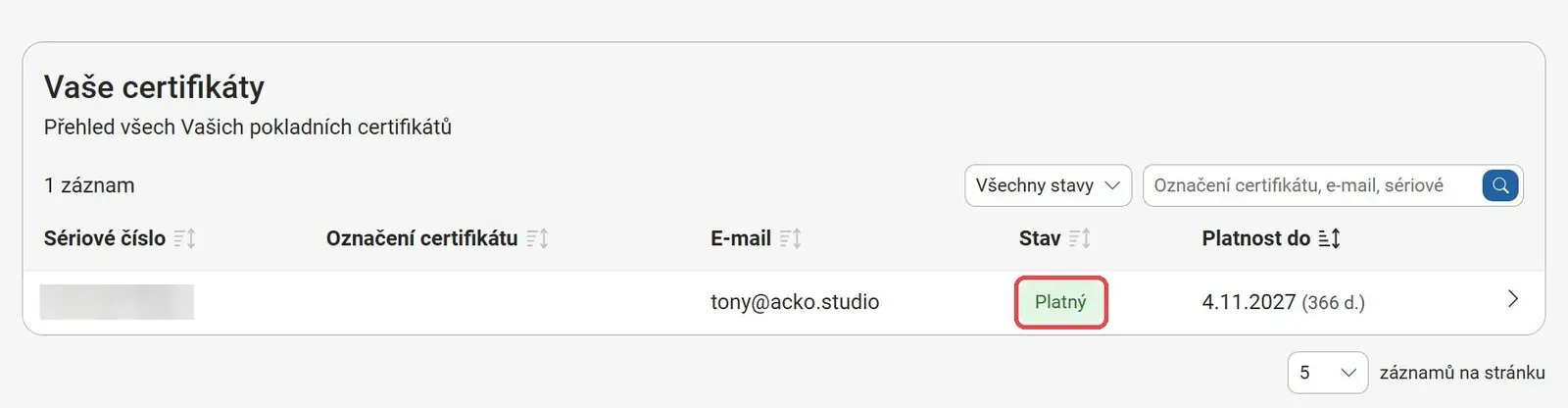
18. Check that the certificate is valid
In the list Vaše certifikáty (your certificates) you will now see a certificate with the status Platný (valid). It is valid for one year, so note down the date in the column Platnost do (valid until). If you filled in the e-mail, the office will warn you before it expires.
19. If a device gets lost
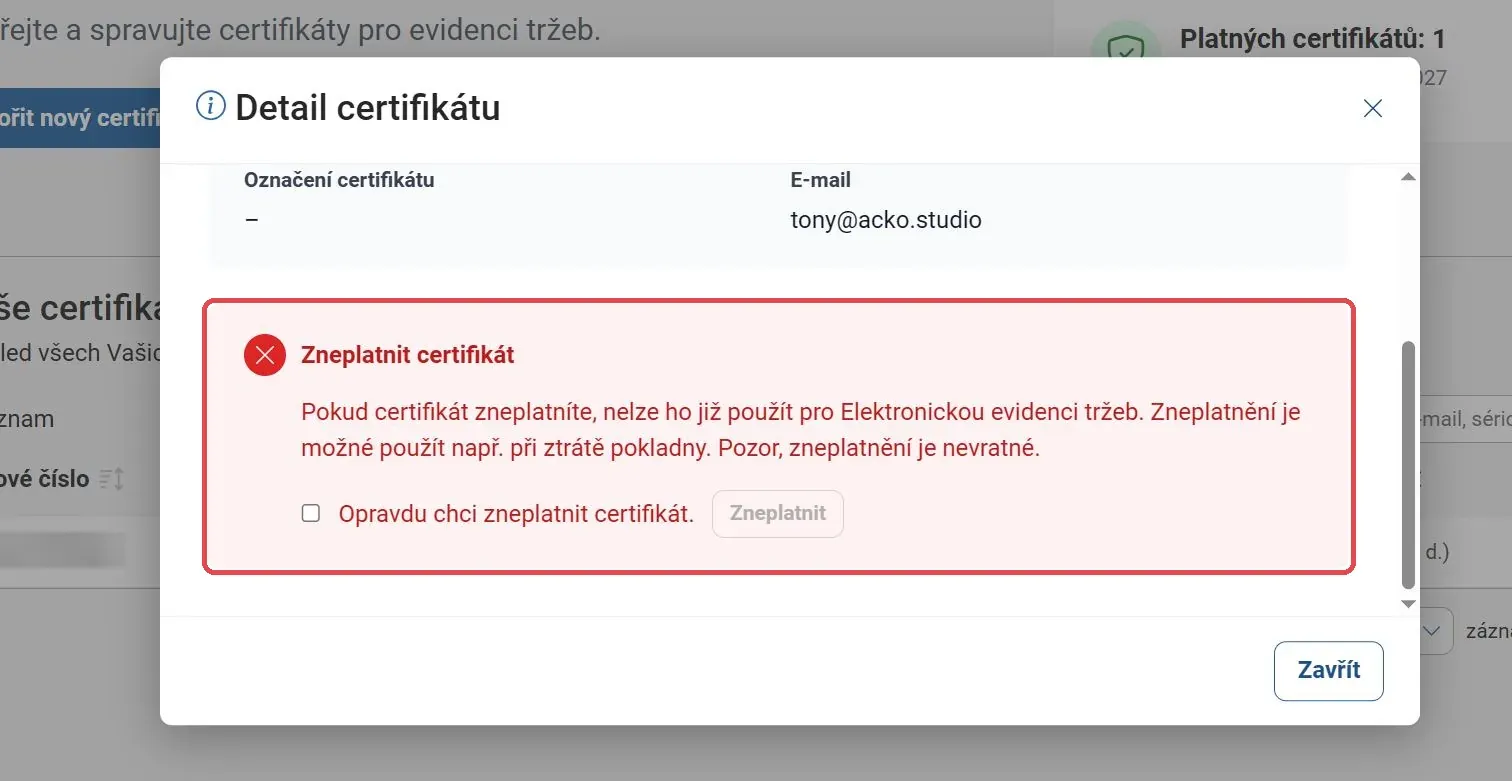
When you click a certificate in the list, its detail opens. At the bottom is Zneplatnit certifikát (revoke certificate). Use it only if the tablet or phone with the till is lost or stolen, because revoking cannot be undone. Then you create a new certificate following steps 14 to 17.
20. Upload the certificate to your till
Load the .p12 file and the password into your till following your vendor’s instructions. Set the response time to at least 2 seconds, as required by the page about setup before you start.
What to give your till provider
There is no official list, but from the steps above your till vendor will most likely need the certificate file, its password and the ID of your sales unit. If someone sets up the till for you, have these three things ready.
What if the internet drops
There is no separate offline mode. If the till gets no confirmation within the set response time, keep selling. Send the sale once the cause is gone, within 48 hours at the latest (sections 19 and 20 of the act). A broken device does not force you to close. Do keep proof that the failure happened.
Receipts and fines
According to the practical information, the EET act itself does not require you to issue a receipt. Other laws, such as consumer protection or VAT rules, may still require a document, so check with your accountant.
Fines can reach 500 000 Kč (sections 23 and 24), and the customs office can fine on the spot (section 25). There is also a one-time tax credit under section 35be in the first period of recording. We do not quote an amount yet.
The infoline is 953 109 109.
What is not clear yet
Two things are not officially clear.
The first is bank transfers. The EET website lists them among in-person payments, while a press release from the Ministry of Finance says they are not covered. Until the office settles this, we will not claim either version.
The second is several IČO (business IDs) on one device, for example in a salon where each nail technician has their own IČO. The office has published no guidance. It is likely that each IČO gets its own units and certificate, but that is only our guess. The act does allow recording for another taxpayer on the basis of authorisation, with the conditions in sections 10 and 17.
How we can help
The acko.studio till in our app supports EET and works with several IČO at the same time. If you use it, we will set it up with you. Just get in touch through the contact block at the bottom of this page. To see what else the app does for salons, from bookings to text messages, have a look at websites for salons.